
Stacked Clustered Bar Chart
Stacked Clustered Bar Chart is a combination of Stacked Bar Chart and Clustered Bar Chart.
This chart provides quick insights for comparing multiple categories. These bar charts are an excellent way to display the contributions of parts of a whole effortlessly, depicting data values more effectively and visually. For example, they can show how much each categorical variable contributed to revenue during a particular period. Stacked clustered charts allow you to comprehend data while visually comparing total values in an effective manner. You can even plot a stacked clustered chart from Excel to Power B I.
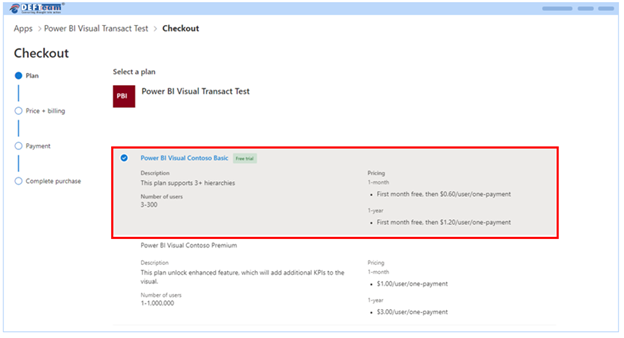
Purchase the visual from AppSource by completing the checkout process. Then, add licenses.
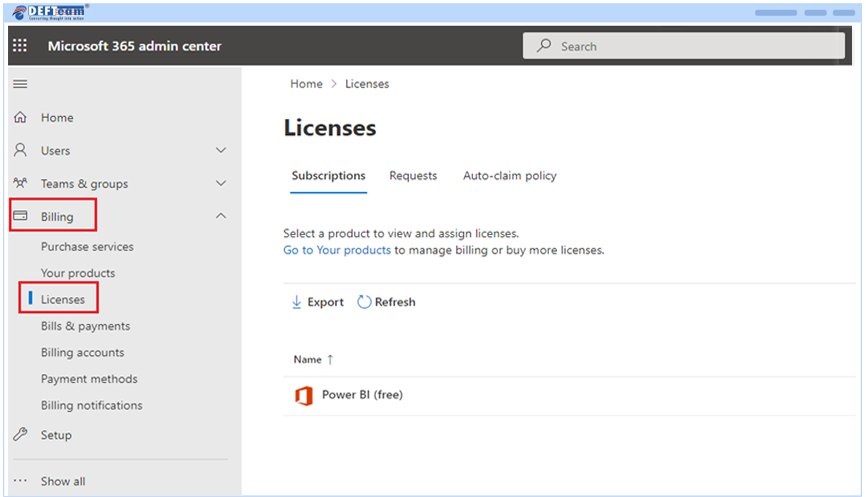
- To add or assign licenses to Stacked Clustered Chart: Go to admin.microsoft.com, choose Billing > License.
- Select a Visual you want to assign licenses.
The minimum required version for Power B I desktop application to use Stacked Clustered Chart should be July 2022 version or above.
- Open Power B I Desktop application.
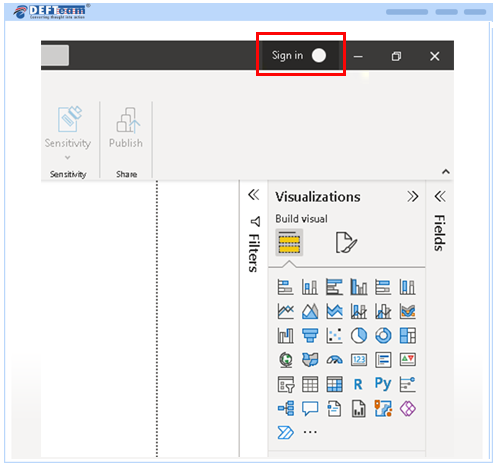
- Sign in with your licensed email id.
- Click on import custom visuals.
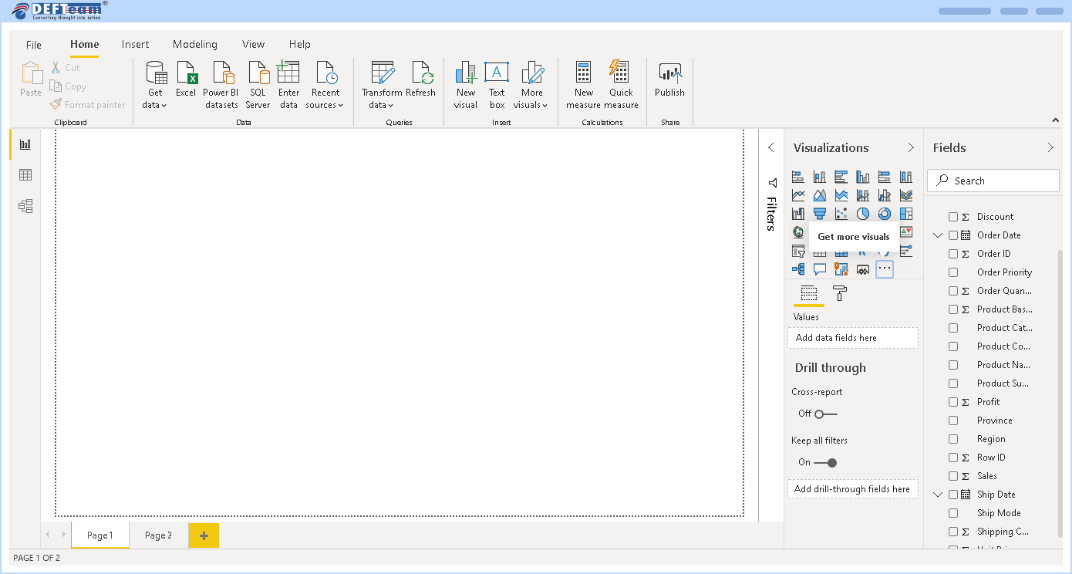
- Click Import a visual from a file, locate the
pbiviz file, then click OK.
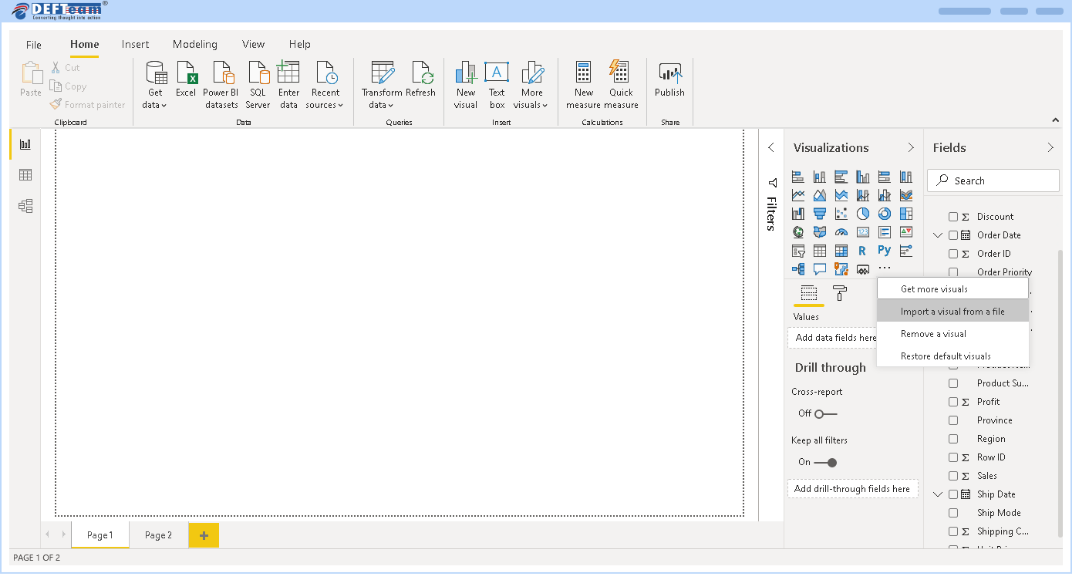
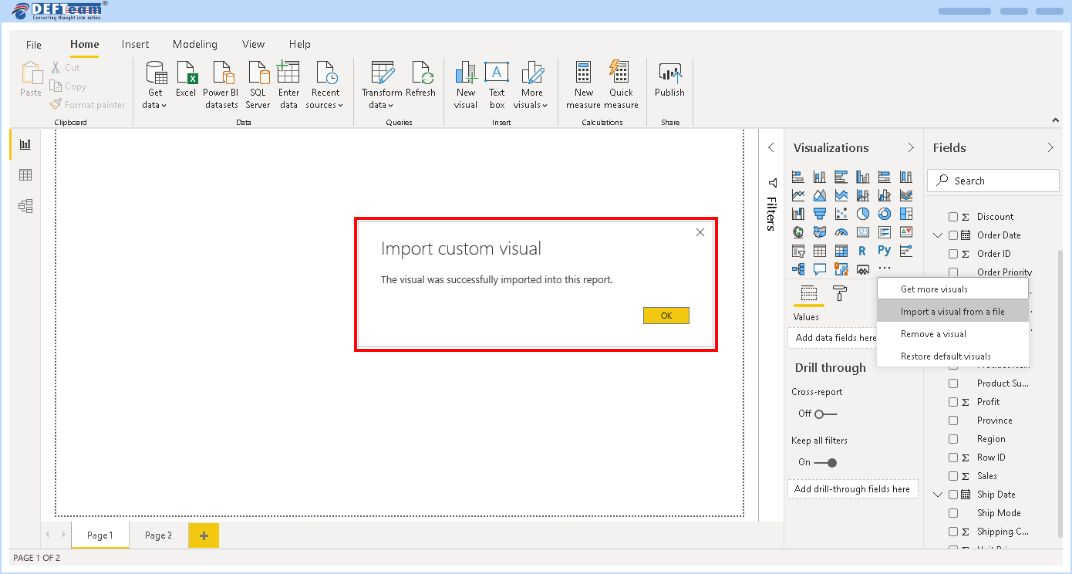
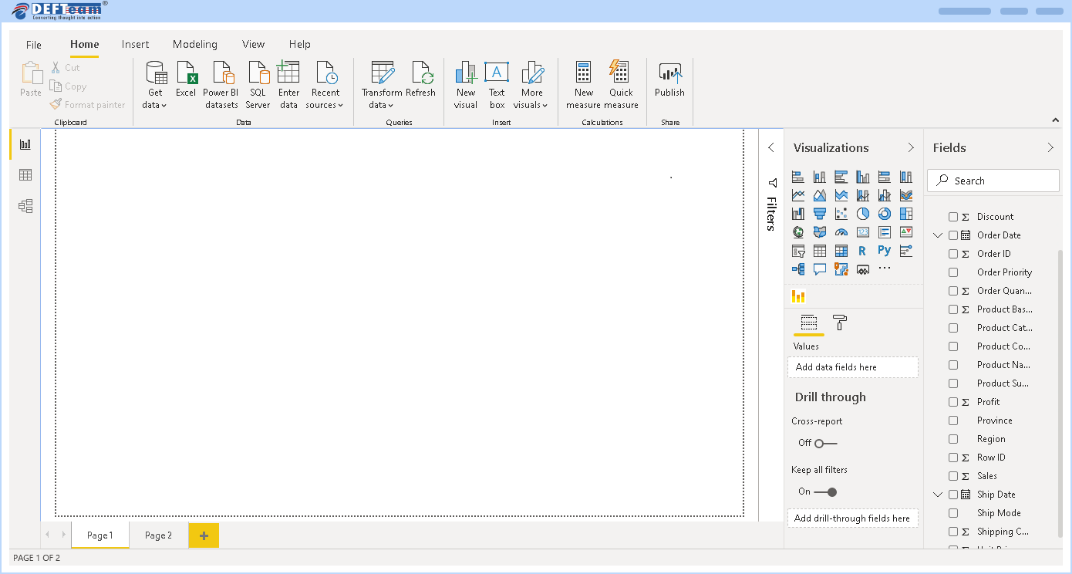
- After the import is complete, you will be able to see Clustered Stacked Bar
Chart icon.
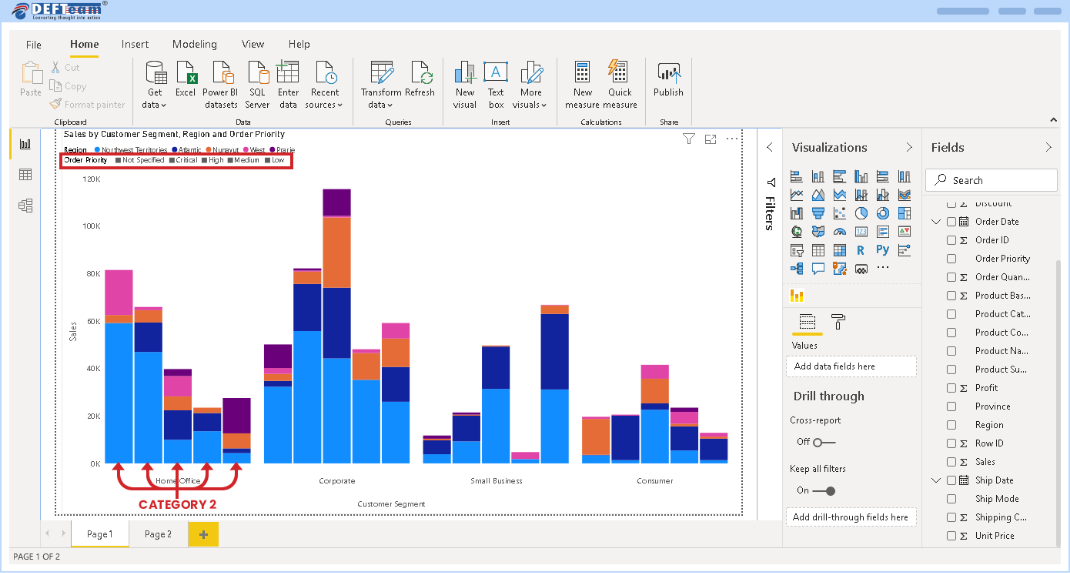
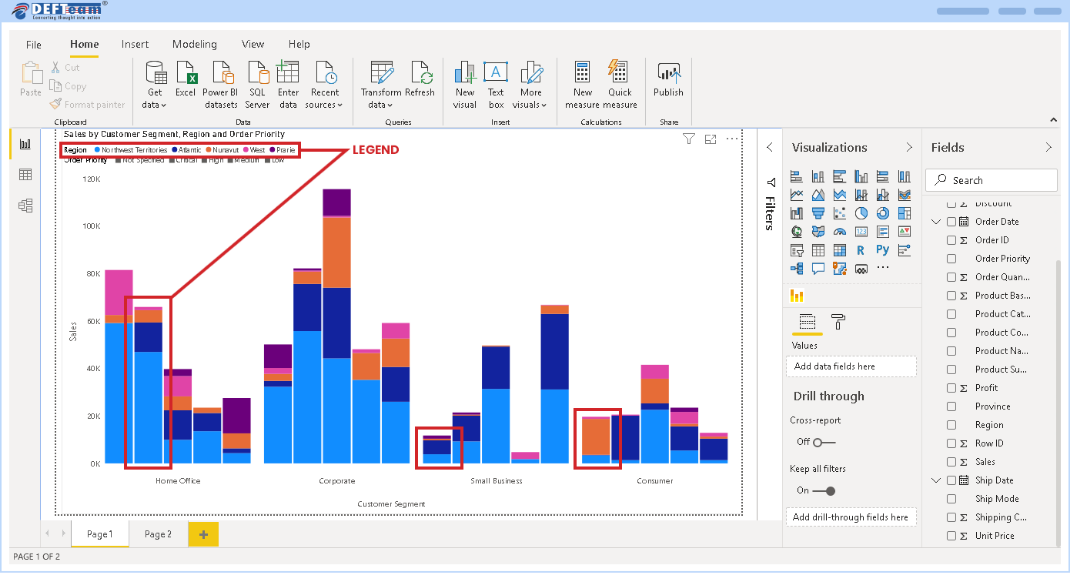
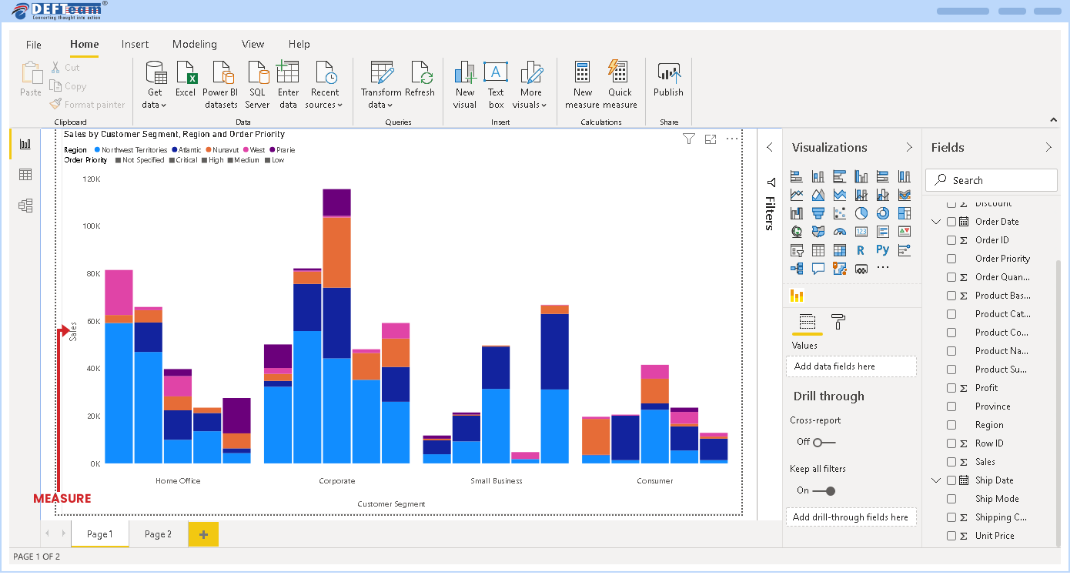
- Creation of stacked cluster chart requires four fields – Category 1, Category 2, Legend and Measure.
- Category 1 as displayed below is used for creating Cluster.
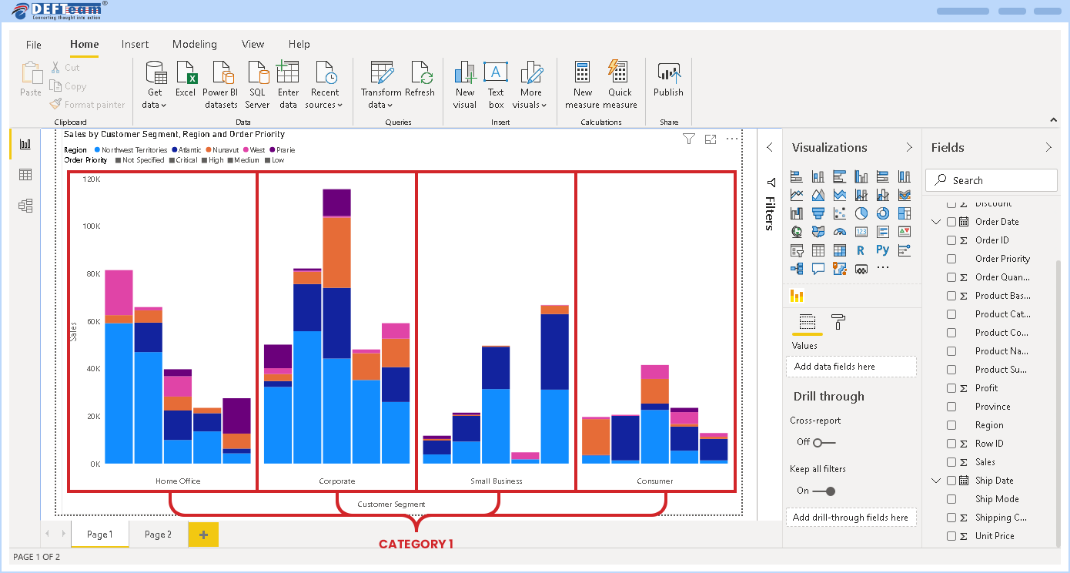
- Category 2 is used for creating side-by-side bars within a Cluster. The
order of Category 2 variables are highlighted below.
- Legend is used for creating a Stack within a bar of Category 1.
- Measure is used for plotting values on the Y-Axis.
Frequently Asked Questions
Once i assign a license, how long does it take to be operational? +
- If you're using the licensed visual in the Power B I Service, refresh the report by hitting F5.
- If you're using the licensed visual in the Power B I Desktop, close and reopen it.
If the license is still unavailable after refreshing, please wait a moment and try again. It may take up to an hour.
Who can assign licenses after the purchase is complete? +
Can we use a visual without having to upload it to organization visual? +
How do we get upgrades of the visuals? +
How do I know if someone in my company has already purchased this same visual? +
- If you're a company administrator, sign in to the Microsoft 365 admin center see all subscriptions and to whom they're assigned.
- If you aren't an administrator, speak to the administrator in your company.